Shop
Step 1: Add Shop
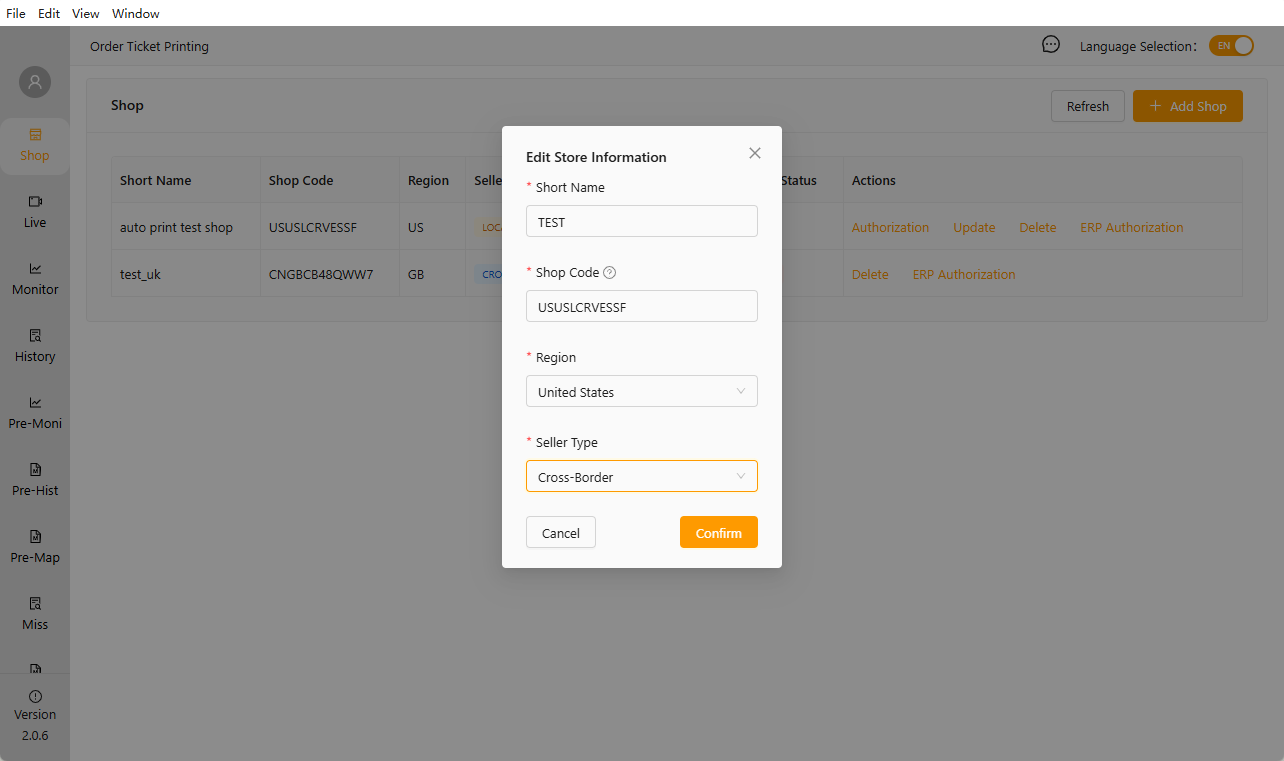
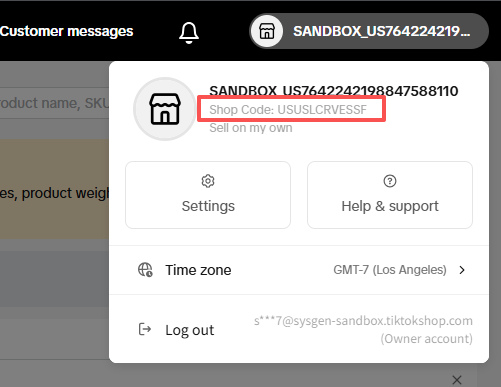
*Shop Code for TikTok Stores
*You need to confirm the store type. The authorization links for cross-border stores and domestic stores are different. If you later receive a message during authorization stating that the store cannot be found or that you need to select a different store, it is usually because the store type is incorrect or the Shop Code does not match the selected store.
Step 2: App Authorization
Click the [Authorization] button, copy the authorization link, and open it in your browser. If you are not logged into your store, you’ll need to log in first. An authorization pop-up will then appear; select the store to authorize, choose the authorization period (select “Permanent”), enter your email address or phone number (optional), and complete the authorization.
*The image shown here is from the secondary authorization page; the process is the same as for the initial authorization.
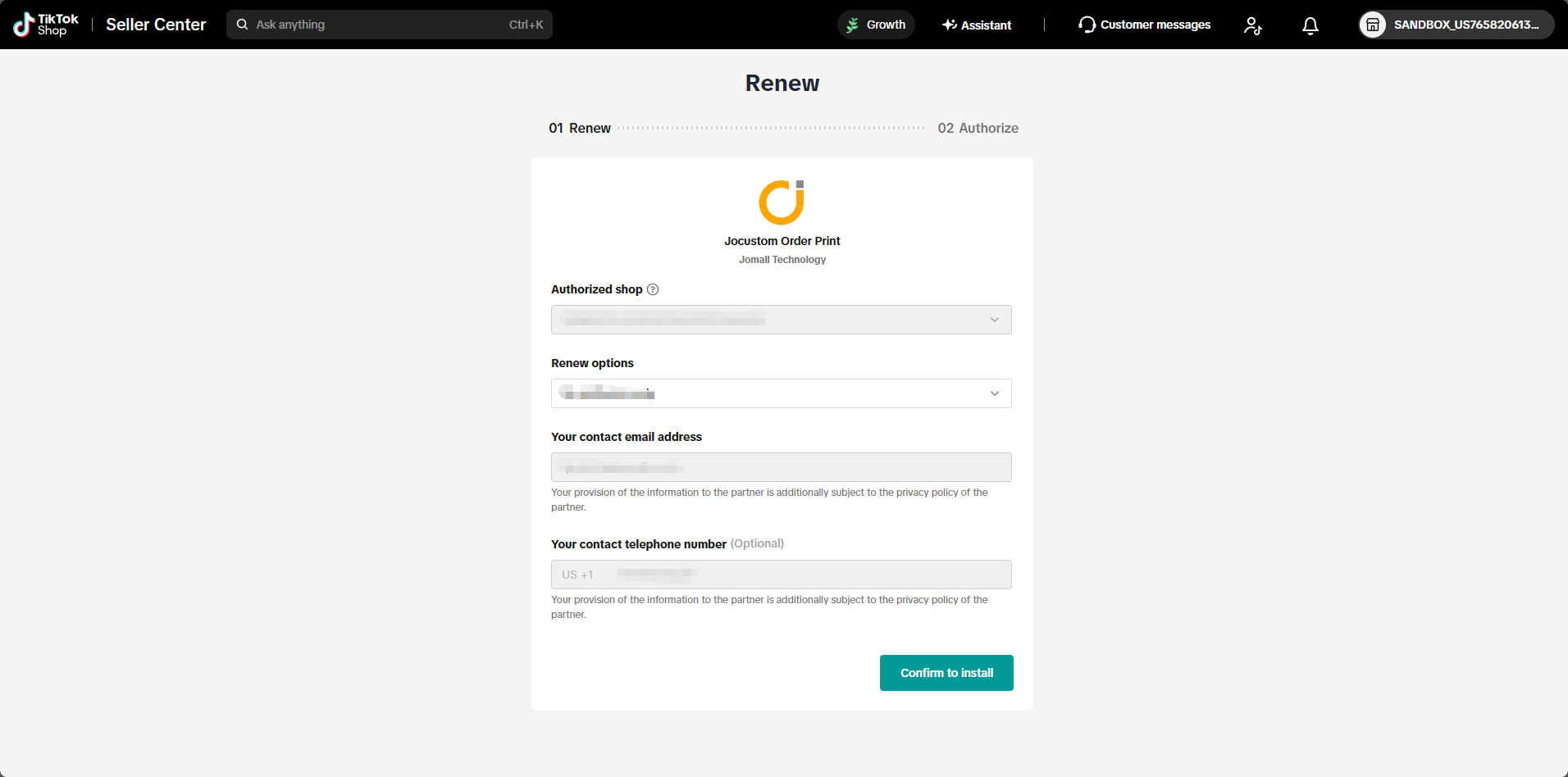
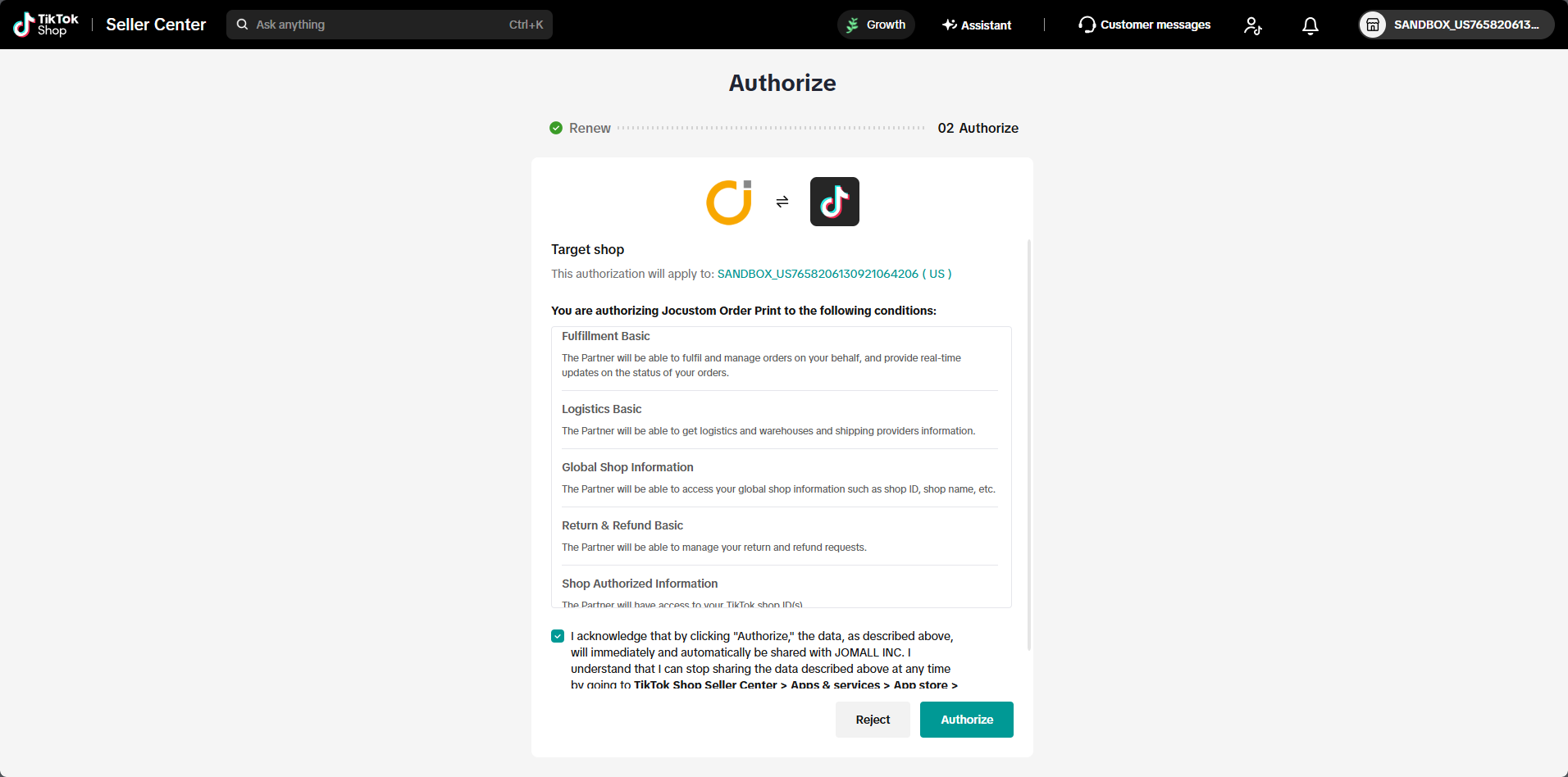
Once authorization is complete, the following page will appear
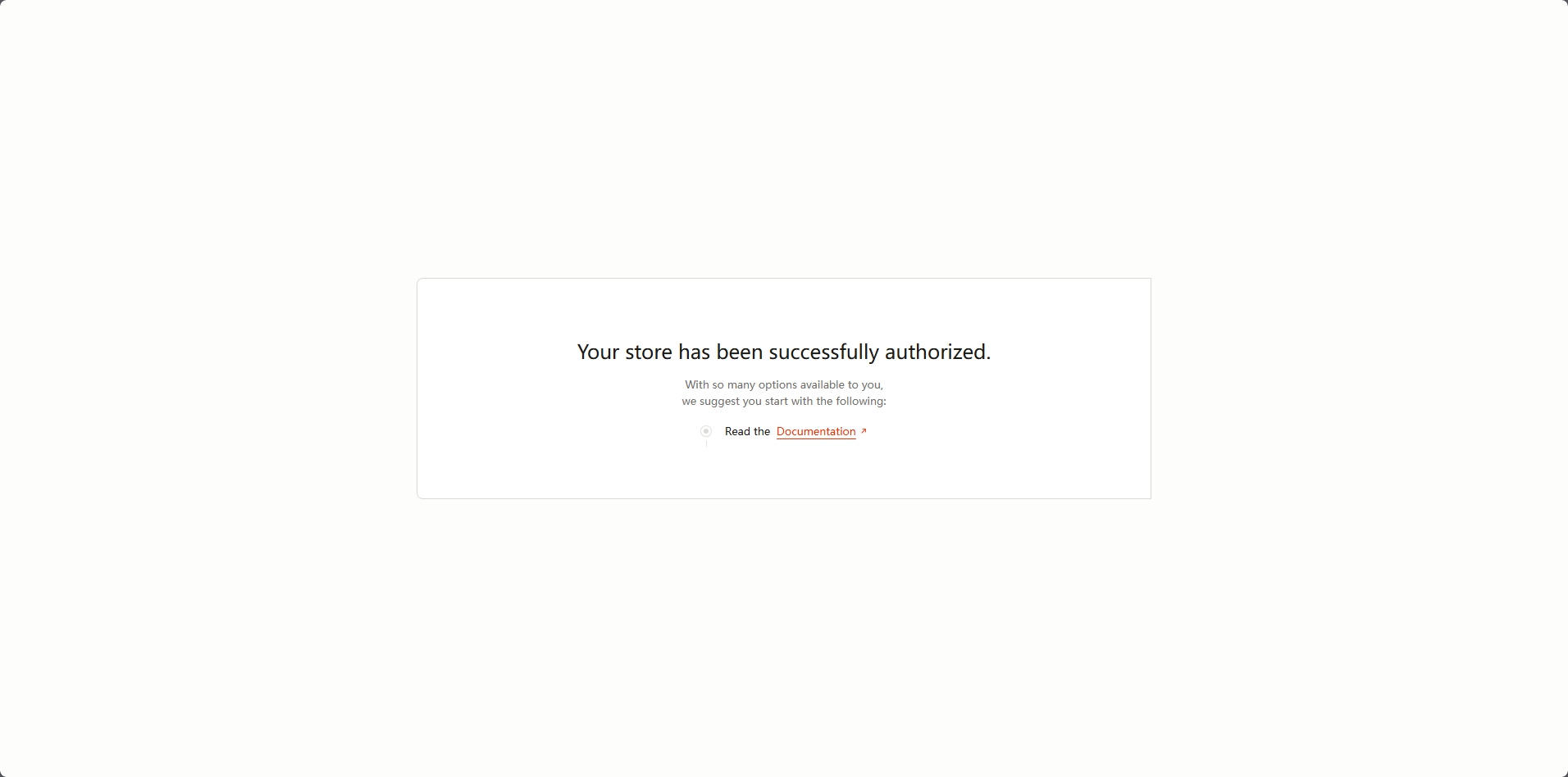
That completes the app authorization process.
If you return to the store list page at this point, a message indicating that authorization was successful will appear. If the page status has not updated, click the [Refresh] button to update it.
Step 3: ERP Authorization (Required only for the spot trading feature)
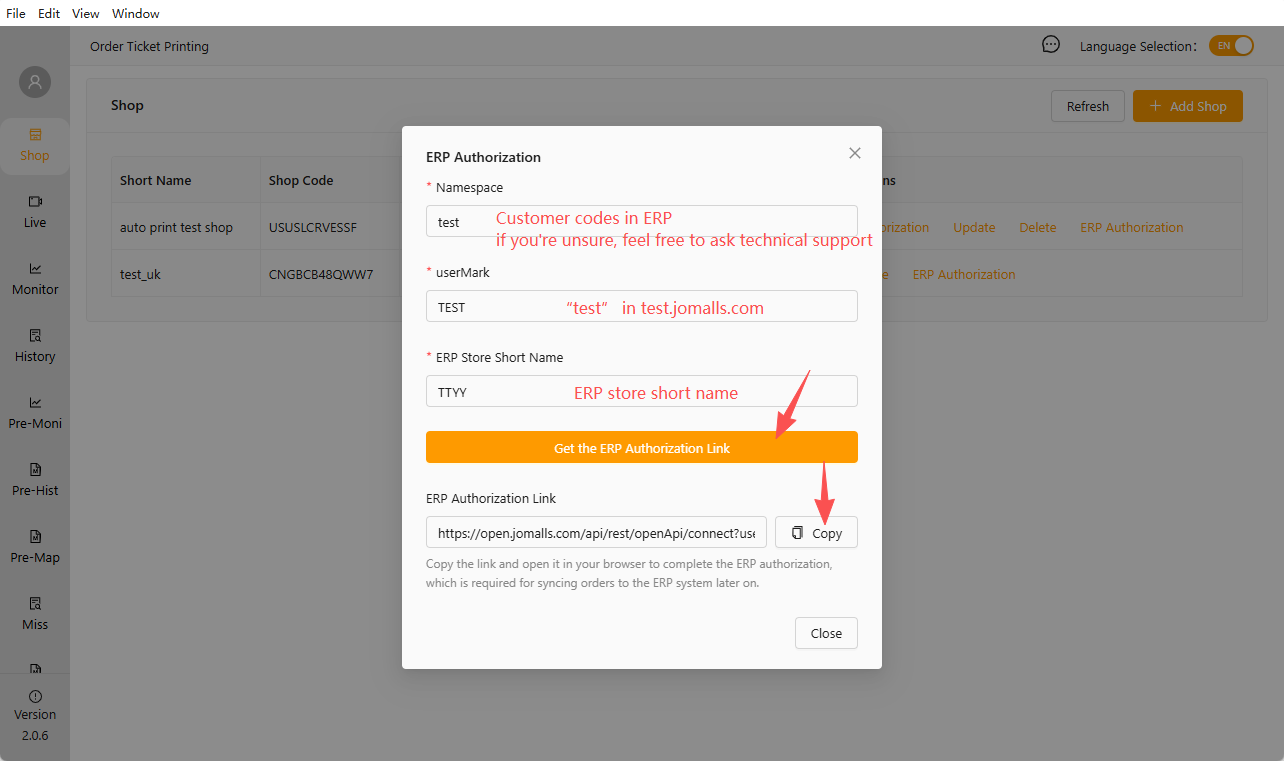
Enter the information above, click to copy the authorization link, and open it in your browser. If you are not logged into your ERP account, you will need to log in. An authorization pop-up will then appear; simply click “Confirm.”
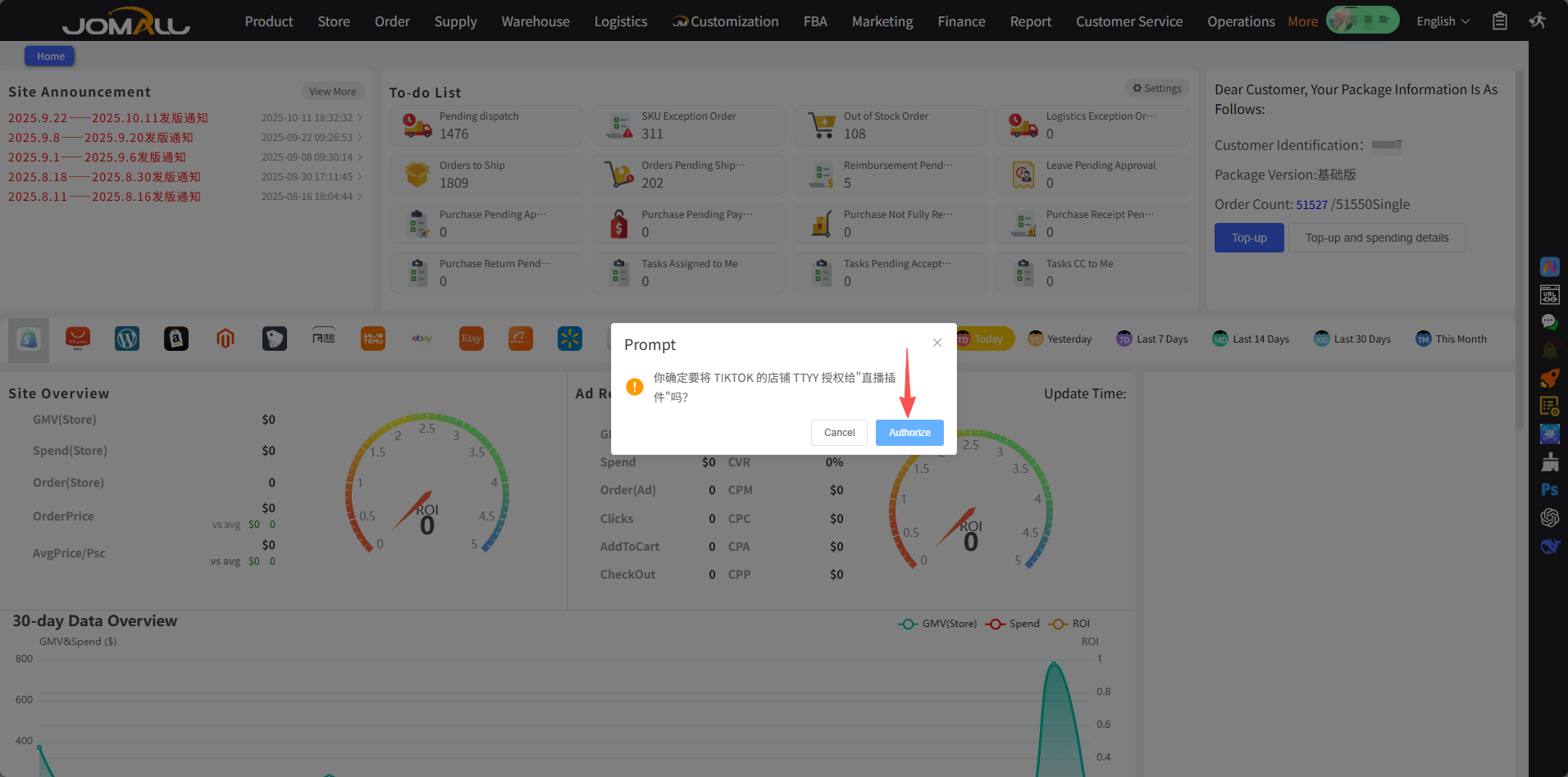
Once authorization is complete, the page will look the same as the application authorization completion page shown above.
That completes the ERP licensing process.